
If your Google Home Mini has stopped responding, won’t connect to Wi-Fi, or keeps acting strangely, a factory reset is often the quickest way to fix it. While many people immediately look for complicated troubleshooting steps, resetting the device can solve everything from persistent software glitches to setup problems after changing your internet network.
Knowing how to reset Google Home Mini is especially useful if you’re selling the device, giving it to someone else, or moving to a new home. A proper reset removes your personal information, disconnects your Google account, and restores the speaker to its original factory settings.
The process is surprisingly simple, but it differs depending on whether you own the original Google Home Mini or the newer Nest Mini. Many users accidentally press the wrong buttons or expect the reset to happen through the Google Home app—which isn’t possible for a true factory reset.
In this guide, you’ll learn exactly how to reset your Google Home Mini, understand when a reset is necessary, avoid common mistakes, and discover practical troubleshooting tips that can save you time before you decide to erase everything.
What Does Resetting a Google Home Mini Do?
A factory reset completely erases the device and returns it to the same condition it was in when it left the factory.
During the reset, the Google Home Mini removes:
- Your Google account
- Saved Wi-Fi network
- Voice Match profiles
- Personalized settings
- Smart home device connections
- Music service preferences
- Assistant history stored on the speaker
After resetting, you’ll need to set the speaker up again using the Google Home app.
A factory reset does not affect your Google account itself. Your emails, photos, calendars, and cloud data remain completely safe.
When Should You Reset Your Google Home Mini?
A reset isn’t something you should do every time your speaker has a minor issue.
Instead, consider it when you experience problems like:
- The speaker won’t connect to Wi-Fi
- Google Assistant stops responding
- The device freezes regularly
- Audio frequently cuts out
- Setup repeatedly fails
- You’re changing ownership
- You’re selling or donating the speaker
- You’re switching to an entirely different Google account
For smaller issues, simply restarting the speaker often works just as well.
Before You Reset Your Google Home Mini
Take a minute to check these things first.
Restart the Speaker
Unplug the power cable.
Wait about 30 seconds.
Plug it back in.
Many temporary software issues disappear after a restart.
Check Your Wi-Fi
Sometimes the speaker appears broken when the problem is actually your internet connection.
Try:
- Restarting your router
- Moving the speaker closer to Wi-Fi
- Testing another smart device
Update the Google Home App
Using an outdated app can create setup problems after the reset.
Updating the app beforehand makes the setup process smoother.
How to Reset the Original Google Home Mini
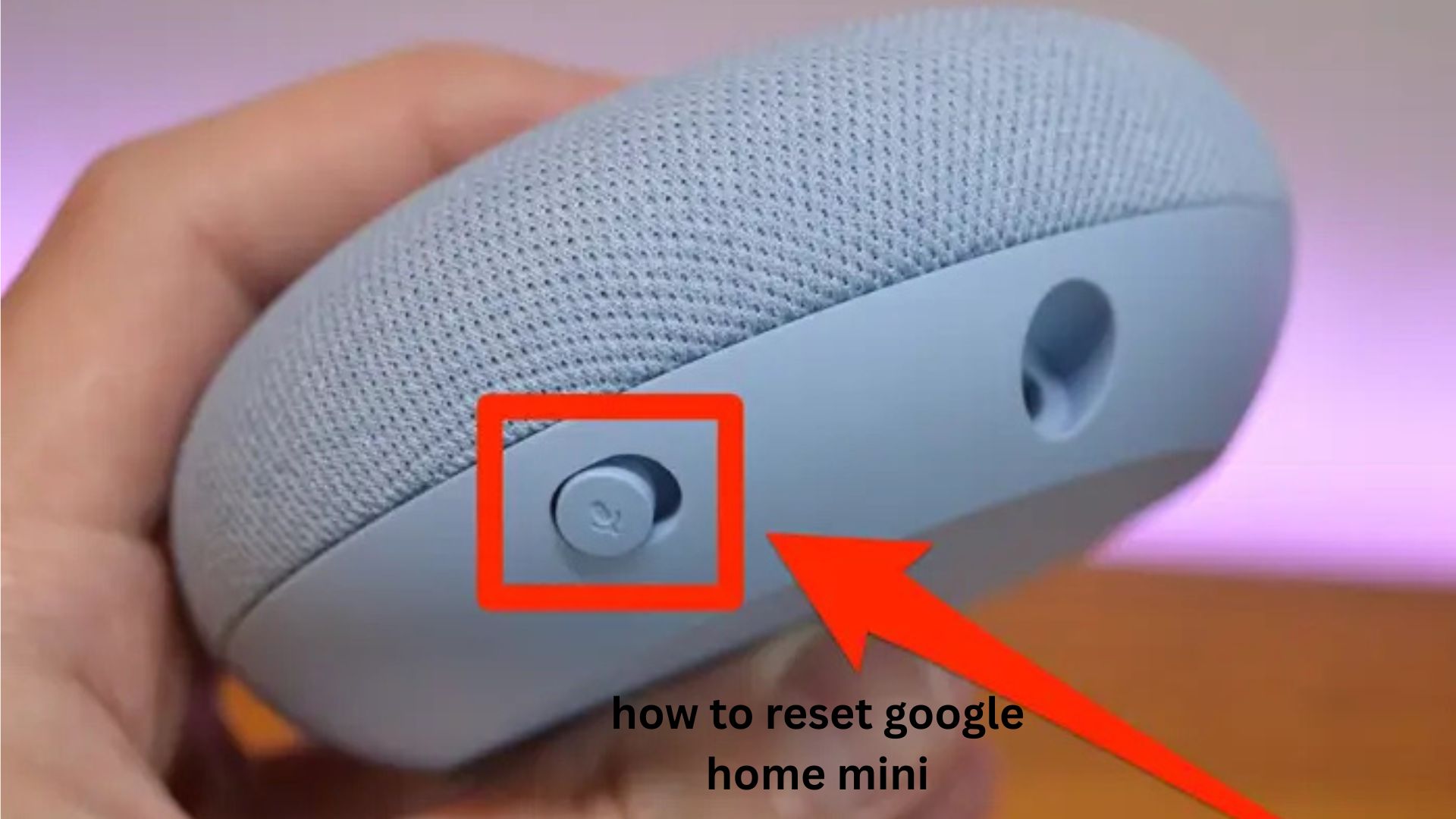
The first-generation Google Home Mini includes a dedicated factory reset button.
Here’s how to reset it:
- Leave the speaker plugged into power.
- Turn the device upside down.
- Locate the small reset button near the power cable.
- Press and hold it for about 15 seconds.
- Continue holding until you hear Google Assistant confirm the reset.
- Release the button.
- Wait several minutes while the speaker erases its settings.
Once complete, it will enter setup mode.
How to Reset Google Nest Mini (2nd Generation)
The Nest Mini uses a different reset method.
Steps:
- Keep the device powered on.
- Turn off the microphone using the switch.
- The LEDs will turn orange.
- Press and hold the center of the speaker.
- Continue holding for approximately 15 seconds.
- Ignore the first voice prompt.
- Keep holding until you hear confirmation that the device is resetting.
- Release your finger.
The reset will finish automatically.
Can You Reset Google Home Mini From the App?
No.
This surprises many people.
The Google Home app lets you:
- Remove the device
- Change settings
- Adjust Wi-Fi
- Rename the speaker
- Manage routines
However, a true factory reset must be performed on the device itself.
This design helps prevent someone from remotely erasing your smart speaker without physical access.
Unique Insight #1: This hardware-only reset requirement is actually a security feature. Even if someone gains access to your Google account remotely, they cannot factory reset your Home Mini unless they physically have the device.
What Happens After the Reset?
After resetting:
The speaker:
- Powers on
- Enters setup mode
- Waits for a new owner
- Is removed from your previous setup
You’ll need to:
- Open Google Home.
- Add a new device.
- Connect to Wi-Fi.
- Sign in with your Google account.
- Complete setup.
The entire process usually takes less than 10 minutes.
How Long Does a Factory Reset Take?
The reset itself usually takes:
- Around 15 seconds to trigger
- 2–5 minutes to complete
The new setup typically requires another 5–10 minutes.
Common Problems During Reset
Sometimes the reset doesn’t seem to work.
Here are the most common reasons.
You’re Pressing the Wrong Spot
Many users accidentally press the volume controls.
Only the factory reset area works.
For Nest Mini users, the microphone must be switched off first.
You Didn’t Hold Long Enough
Most failed resets happen because the button wasn’t held long enough.
Wait until you hear Google’s spoken confirmation before releasing.
The Speaker Has No Power
Check:
- Power adapter
- Wall outlet
- Cable connection
A loose cable can interrupt the reset process.
The Device Is Frozen
If nothing happens:
- Unplug it.
- Wait one minute.
- Plug it back in.
- Try resetting again.
Does Resetting Fix Wi-Fi Problems?
Very often, yes.
A factory reset removes corrupted network settings that may prevent successful connections.
If you recently:
- Changed routers
- Renamed your Wi-Fi
- Changed passwords
- Switched internet providers
Resetting often solves the issue.
However, if your router itself is having problems, resetting the speaker won’t help.
Does Resetting Improve Performance?
It can.
Over time, unusual settings, incomplete updates, or connection errors may cause odd behavior.
A clean factory reset gives the software a fresh start.
Unique Insight #2: Many people think resets make the hardware “faster.” In reality, the improvement comes from clearing configuration conflicts—not because the processor or memory becomes faster.
Does a Factory Reset Delete Voice Recordings?
No.
Your voice recordings are linked to your Google account, not the speaker itself.
Factory resetting only removes the device from your home setup.
If you want to remove stored Assistant activity, you’ll need to delete it separately through your Google account settings.
Selling or Giving Away Your Google Home Mini
Before handing your device to someone else:
- Perform a factory reset.
- Remove it from your Google Home app.
- Disconnect any smart home routines.
- Wipe the exterior clean.
- Include the original power adapter if possible.
This protects your privacy and makes setup easier for the next owner.
Common Mistakes to Avoid
Many users accidentally create extra work for themselves.
Avoid these mistakes:
- Resetting when a simple restart would fix the issue
- Releasing the reset button too early
- Forgetting your Wi-Fi password before setup
- Using an outdated Google Home app
- Attempting to factory reset through the app
- Disconnecting power during the reset process
Troubleshooting After Reset
If setup still fails after resetting, try the following:
Verify Your Wi-Fi Band
Google Home Mini works best with a stable Wi-Fi network. If your router has separate 2.4 GHz and 5 GHz networks, ensure you’re connecting to the one supported by your device and setup.
Move Closer to the Router
Weak signals often cause setup failures.
Restart Your Phone
Sometimes the phone—not the speaker—is causing the setup issue.
Reset Your Router
If every smart device struggles to connect, your network may need attention instead of the speaker.
Unique Insight #3: In homes with many smart devices, IP address conflicts can occasionally interrupt setup after a router restart. Restarting the router before setting up a freshly reset Google Home Mini can automatically assign a new network address and eliminate this rare but frustrating issue.
Factory Reset vs Restart
| Restart | Factory Reset |
|---|---|
| Temporary fix | Complete reset |
| Keeps settings | Erases everything |
| Takes under a minute | Requires new setup |
| Good for small glitches | Best for major issues |
| No data loss | Removes all local settings |
If you’re unsure, always try restarting first.
FAQ
How do I reset Google Home Mini without the Google Home app?
You don’t need the app to perform a factory reset. Use the physical reset method on the device by holding the appropriate reset button or touch area, depending on your model. The app is only needed afterward to complete the setup process.
Will resetting Google Home Mini delete my Google account?
No. A factory reset only removes your account from the speaker. Your Google account, emails, photos, contacts, and other cloud data remain untouched and can be used to set up the device again.
Why won’t my Google Home Mini reset?
The most common reasons are releasing the button too early, pressing the wrong area, or forgetting to disable the microphone on a Nest Mini before starting the reset. Also, ensure the speaker is connected to power throughout the process.
Can I reset Google Home Mini if I forgot my Wi-Fi password?
Yes. The reset process doesn’t require your Wi-Fi password. However, you’ll need the correct password when setting the speaker up again after the reset is complete.
How often should I factory reset my Google Home Mini?
Only reset it when necessary. Frequent factory resets provide little benefit and require repeating the setup process each time. For routine issues, restarting the speaker is usually enough.
Conclusion
Learning how to reset Google Home Mini can save you from hours of frustrating troubleshooting. Whether you’re fixing connection problems, preparing the speaker for a new owner, or starting fresh after persistent software issues, the reset process is straightforward once you know the correct method for your model.
Before choosing a factory reset, remember to try simpler fixes like restarting the device or checking your Wi-Fi connection. If those don’t work, a proper reset often resolves even stubborn problems in just a few minutes. By following the steps and tips in this guide, you’ll be able to reset your Google Home Mini confidently and get it back up and running with minimal hassle.