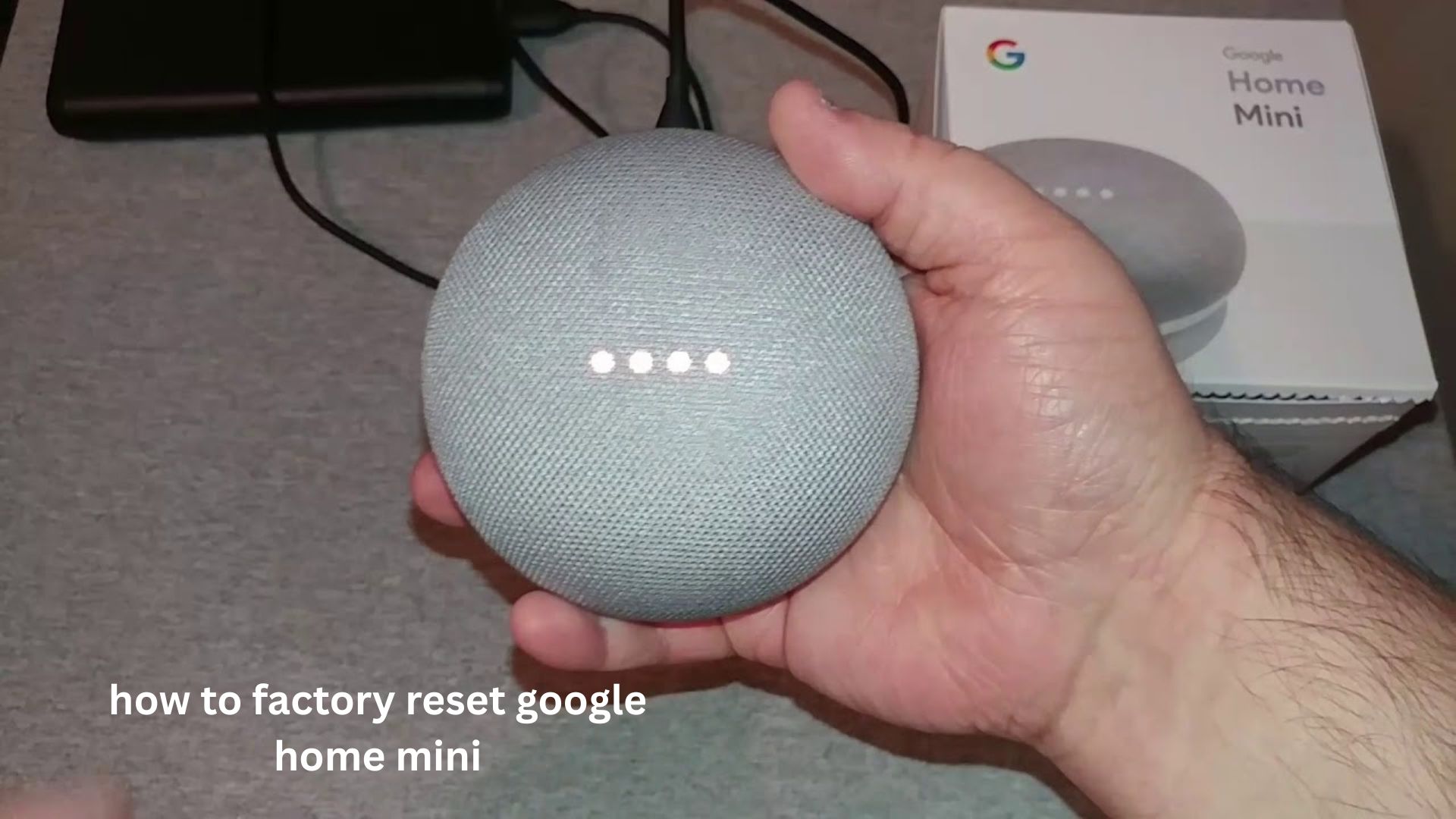
A Google Home Mini that stops responding, stays connected to the wrong account, or refuses to connect to Wi-Fi can become frustrating very quickly. Many users try restarting the device, changing settings, or reinstalling the app, only to find that the problem remains. In situations like these, learning how to factory reset Google Home Mini is often the most reliable solution.
A factory reset completely removes saved information from the speaker, including Wi-Fi details, linked accounts, and personalized settings. It is especially useful when you are giving the device to someone else, moving to a new home, troubleshooting connection problems, or fixing unusual behavior.
This guide explains the correct reset methods for different Google Home Mini models, what happens after the reset, common mistakes to avoid, and practical tips that can save time during setup. Whether your speaker is frozen, offline, or simply needs a fresh start, these steps will help you reset it properly and reconnect it without unnecessary confusion.
What Happens When You Factory Reset Google Home Mini?
Before resetting your device, it is important to understand what a factory reset actually does.
A factory reset restores the Google Home Mini to its original settings, just like it was when you first purchased it. It removes:
- Your connected Wi-Fi network
- Google account connection
- Voice Match settings
- Device preferences
- Custom routines linked to the speaker
- Bluetooth connections
- Personalized responses
After the reset, the Google Home Mini will behave like a brand-new device and must be set up again through the Google Home app.
A common misunderstanding is that a factory reset only restarts the speaker. It does not. A restart simply turns the device off and on, while a factory reset permanently clears stored information.
How to Factory Reset Google Home Mini (1st Generation)
The original Google Home Mini has a physical reset button located underneath the speaker.
Follow these steps:
- Keep your Google Home Mini plugged into power.
- Turn the device over and locate the small reset button near the power cable.
- Press and hold the button.
- Continue holding for about 15 seconds.
- You will hear the Google Assistant confirm that the device is resetting.
- Release the button and wait for the process to complete.
The reset usually takes about one minute. When finished, the speaker will return to setup mode, and the lights will indicate that it is ready to connect.
Practical Tip
Do not unplug the device while the reset process is running. Interrupting power during a reset can sometimes cause setup problems and force you to repeat the process.
How to Factory Reset Google Nest Mini (2nd Generation)
Many people search for Google Home Mini reset instructions but actually own the newer Google Nest Mini. The reset process is slightly different.
To reset a Google Nest Mini:
- Turn off the microphone using the switch on the side.
- Wait until the lights turn orange.
- Press and hold the center area of the speaker.
- Keep holding for around 15 seconds.
- The device will announce that it is resetting.
- Release the button after confirmation.
The Google Nest Mini does not have the same physical reset button as the first-generation model, which is why many users have trouble finding the correct method.
How to Tell Which Google Mini Model You Have
Before resetting, identify your device because the button location depends on the model.
Google Home Mini (1st Generation)
Signs include:
- Reset button underneath the device
- Small circular design
- Power cable connects directly to the bottom
- Google logo on the base
Google Nest Mini (2nd Generation)
Signs include:
- Wall mounting hole on the back
- Improved speaker quality
- Microphone switch on the side
- Reset area located near the top center
Choosing the wrong reset method is one of the most common reasons users think their Google Mini reset is not working.
Can You Factory Reset Google Home Mini From the Google Home App?
A frequent question is whether users can reset the speaker remotely through the app.
The answer is no. Google does not provide a full factory reset option inside the Google Home app.
You can remove the device from your account, but that does not erase all stored information in the same way as a physical factory reset.
To completely wipe the device, you must use the hardware reset button.
However, after resetting, the Google Home app is required to complete the new setup process.
Why You Might Need to Reset Your Google Home Mini
A factory reset is not something you need regularly, but it can solve several real-world problems.
1. Changing Wi-Fi Networks
If you move to a new house or replace your router, your Google Home Mini may fail to connect because it still remembers the old network.
A reset clears the previous Wi-Fi information and allows you to configure the new connection.
2. Selling or Giving Away the Device
Before transferring your speaker to another person, always perform a factory reset.
Removing the device from your Google account alone may not remove all settings stored on the speaker.
3. Fixing Connection Problems
Resetting can help when:
- Google Home Mini keeps disconnecting
- The device cannot find Wi-Fi
- The speaker appears offline
- Setup gets stuck repeatedly
4. Solving Software Glitches
Sometimes a device may experience strange behavior, such as:
- Google Assistant not responding correctly
- Incorrect voice recognition
- Delayed commands
- Random disconnects
A clean reset can remove corrupted settings causing these issues.
Common Mistakes When Resetting Google Home Mini
Many users encounter problems because they skip important steps.
Mistake 1: Holding the Wrong Button
The reset button differs between models. Pressing the microphone button or volume buttons will not reset the device.
Always confirm whether you own a Google Home Mini or Google Nest Mini.
Mistake 2: Releasing the Button Too Early
The reset process requires continuous pressure. If you release the button after only a few seconds, the device may simply continue normal operation.
Mistake 3: Forgetting to Remove Old Account Access
If you are selling the device, resetting the speaker is important, but you should also check your Google Home app and remove the device from your home settings.
Mistake 4: Resetting Without Trying Simpler Fixes
A factory reset removes everything. Before doing it, try:
- Restarting your router
- Restarting the speaker
- Checking your Google Home app
- Updating the app
Sometimes a simple restart solves the issue without requiring a full reset.
What To Do After Factory Resetting Google Home Mini
Once the reset is complete, you need to set up your speaker again.
Follow these steps:
- Open the Google Home app.
- Sign in with your Google account.
- Tap the option to add a new device.
- Select your home location.
- Choose Google Home Mini from the available devices.
- Connect it to Wi-Fi.
- Configure voice settings and preferences.
The setup process usually takes only a few minutes if your Wi-Fi password is available.
Advanced Tips for a Better Reset Experience
Keep Your Phone Close During Setup
After resetting, your phone communicates with the speaker during setup. Keeping them close together reduces connection errors.
Use the Same Google Account Initially
If you reset your speaker because of problems, set it up using the same Google account first. This makes it easier to restore routines and settings.
Check Your Router Settings
Some routers have security settings that block smart devices.
If your Google Home Mini repeatedly fails to connect after a reset, check:
- Wi-Fi frequency compatibility
- Router firewall settings
- Device limits on your network
Wait Before Repeating a Reset
A common mistake is repeatedly resetting the device because it does not immediately respond. After a reset, give the speaker enough time to restart completely before trying again.
Factory Reset vs Restart: What Is the Difference?
| Feature | Restart | Factory Reset |
|---|---|---|
| Keeps settings | Yes | No |
| Removes Wi-Fi information | No | Yes |
| Removes account data | No | Yes |
| Useful for minor issues | Yes | Sometimes |
| Required before selling | No | Yes |
A restart is a quick troubleshooting step, while a factory reset is a complete cleanup.
Real-Life Situations Where Resetting Helps
Example 1: Moving to a New Home
A user moves and changes their internet provider. The Google Home Mini keeps trying to connect to the old network. Resetting removes the outdated Wi-Fi information and allows a fresh setup.
Example 2: Buying a Used Google Home Mini
A second-hand speaker may still be connected to the previous owner’s account. A factory reset ensures the new owner can connect their own Google account.
Example 3: Voice Assistant Problems
If Google Assistant repeatedly misunderstands commands after years of use, resetting can refresh the device settings and improve performance.
FAQ
How do I factory reset Google Home Mini without the app?
You cannot perform a complete factory reset through the Google Home app. The reset must be done using the physical button on the device. The exact button location depends on whether you have the first-generation Google Home Mini or the second-generation Nest Mini.
Why is my Google Home Mini not resetting?
If your Google Home Mini is not resetting, make sure you are holding the correct reset button long enough. Keep the device connected to power and continue holding until you hear the reset confirmation.
Will a factory reset delete my Google account?
A factory reset removes your account connection from the speaker, but it does not delete your Google account itself. Your account remains active and can be used to set up the device again later.
How long does it take to reset Google Home Mini?
A Google Home Mini factory reset usually takes about one minute. After resetting, the device enters setup mode and can be configured again through the Google Home app.
Do I need to reset Google Home Mini before selling it?
Yes. Resetting before selling or giving away the device protects your privacy by removing saved settings, connected accounts, and personal preferences.
Conclusion
Knowing how to factory reset Google Home Mini can save time when dealing with connection problems, account changes, or device issues. The process is simple, but using the correct method for your specific model is essential.
Remember that a factory reset is a complete cleanup, not just a restart. It removes saved information and prepares the speaker for a fresh setup. Before resetting, consider trying basic troubleshooting steps, but when those fail, a factory reset is often the most effective solution.
With the right steps, your Google Home Mini can be ready for a new setup in just a few minutes.