
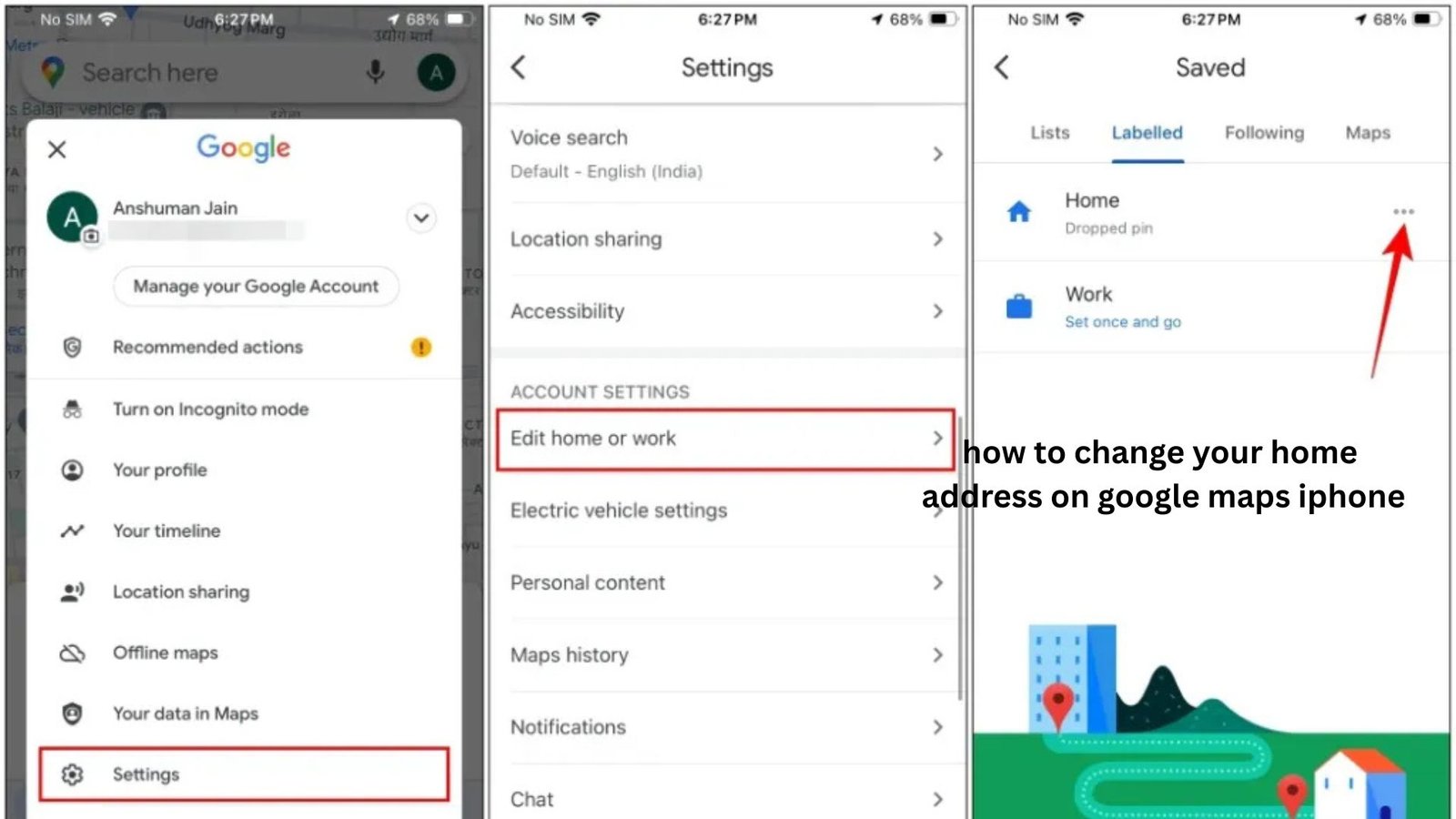
Moving to a new place is exciting—until your iPhone keeps sending you to your old home. If Google Maps still thinks your previous address is “Home,” directions, commute estimates, searches, and saved locations can all become confusing.
Fortunately, learning how to change your home address on Google Maps iPhone is straightforward once you know where Google stores the information. The important detail is that your Home address is generally managed through your Google account and Google Maps settings, not by simply changing your iPhone’s address.
This guide walks you through the current process, including what to do if Google Maps continues showing the old address, how to remove an outdated Home location, and what changes when you use multiple Google accounts. You’ll also find practical troubleshooting advice for situations where the normal steps do not work.
Whether you have moved permanently, are temporarily living somewhere else, or accidentally saved the wrong address, these steps can help you get Google Maps pointing to the right place again.
How to Change Your Home Address on Google Maps iPhone
The easiest way is to edit your Home entry in Google Maps or your Google Account’s saved places.
On an iPhone, the general process is:
- Open the Google Maps app.
- Make sure you are signed in to the correct Google account.
- Tap your profile picture or initial in the upper-right corner.
- Open Your data in Maps, Saved, or the relevant settings area, depending on your current Maps version.
- Find the Home address.
- Select the option to edit or change it.
- Enter your new address.
- Select the correct location from Google’s suggestions.
- Save the change.
Google periodically changes the layout and wording of its iPhone app, so the exact button names can differ slightly. If you cannot find Home inside the Maps menus, managing your saved Home and Work addresses through your Google Account can be the more reliable approach.
Why the correct Google account matters
One of the easiest mistakes is editing the wrong account.
For example, suppose you have a personal Gmail account and a work Google account signed into your iPhone. You change the Home address while using the work account, but Google Maps is actually using your personal account for navigation.
The result is frustrating: you changed the address, but Google Maps still shows the old one.
Before troubleshooting anything complicated, check the profile icon in Google Maps and confirm which Google account is active.
Change Your Home Location Directly in Google Maps
If your version of Google Maps provides the Home shortcut through saved locations, you can usually update it directly.
Step 1: Open Google Maps
Launch Google Maps on your iPhone and wait for your normal map screen to load.
Do not start by changing your iPhone’s Contacts address or Apple Maps settings. Those are separate systems and may not change your Google Maps Home location.
Step 2: Open your Google account menu
Tap your profile picture or account initial.
This is where Google Maps provides access to account-specific settings and saved information.
Step 3: Find your saved Home location
Look for your saved places, labeled locations, or an option related to your personal information.
Google Maps may display Home alongside other shortcuts such as Work or favorite places.
Step 4: Edit the address
Select Home and choose the edit/change option.
Type your new address carefully. If Google presents several suggested addresses, choose the one that corresponds to the actual entrance or location you use.
Step 5: Confirm the location
This step is more important than it looks.
An address can be technically correct while the map pin is placed on the wrong building, neighboring street, or rear entrance.
After selecting the address, check the map position before saving.
What If Google Maps Won’t Let You Change Your Home Address?
Sometimes the normal Home option does not appear where you expect it to.
This can happen because Google changes its app interface, because you are using a different Google account, or because the Home address is being managed through your Google Account rather than directly through a Maps shortcut.
Try these steps:
- Confirm that you’re signed into the correct Google account.
- Update Google Maps from the App Store if an update is available.
- Close and reopen Google Maps.
- Check your Google Account’s personal information and saved addresses.
- Remove the old Home entry and add the new one if editing is unavailable.
- Make sure you have an active internet connection.
- Sign out and back into the correct Google account if the address appears stuck.
A useful troubleshooting trick
If Google repeatedly displays the old address, don’t immediately assume that Maps has failed to update.
Search for the old address manually in Google Maps.
If the old address appears because it is a saved Home label, the problem is different from an old address appearing because Google is suggesting a location from search history.
Those two sources can look surprisingly similar on an iPhone.
Changing Home in Google Maps vs. Changing Your iPhone Address
These are not the same thing.
| Change | What it affects |
|---|---|
| Google Maps Home address | Google Maps and Google account-based location shortcuts |
| Apple Maps Home/Contacts | Apple’s ecosystem and Apple Maps |
| iPhone location permission | Whether apps can access your device’s physical location |
| Contact card address | Information stored in your Contacts |
| Google Account address | Certain Google account and personalized services |
This distinction explains many failed attempts to fix the problem.
For instance, changing your address in your iPhone contact card does not necessarily change the Home shortcut associated with your Google account.
Likewise, changing your Google Maps Home address does not automatically update every address stored on your iPhone.
How to Remove an Old Home Address From Google Maps
If you have moved and want the previous address completely gone, changing the Home label may not be enough.
First, update the Home location to your new address.
Then check whether the old address remains elsewhere in your Google Maps activity or saved locations.
Depending on your account settings, Google may retain information such as:
- Recent searches
- Places you’ve searched for
- Saved locations
- Maps activity
- Frequently visited places
These are different from the Home label itself.
Why this matters
Imagine you moved from Apartment A to Apartment B.
You successfully change Home to Apartment B. However, when you tap the search box, Google Maps still suggests Apartment A because it was recently searched or frequently used.
That doesn’t necessarily mean your Home address is still wrong.
You have changed the label, but the old location may still exist in your Maps history or suggestions.
How to Make Sure the New Home Address Is Accurate
Simply entering a street address isn’t always enough.
For apartments, gated communities, rural properties, office buildings, and large residential complexes, Google Maps may position the pin differently from where you actually enter.
After changing your Home address, test it.
Try a real navigation test
Search for a nearby location and request directions from Home.
Look at:
- The starting point
- The map pin
- The suggested route
- The street or entrance Google uses
- The estimated travel time
If the starting point appears in the wrong place, edit the location again rather than assuming the problem is with GPS.
Apartment example
Suppose your new address is in a large apartment complex.
Google might identify the street address correctly but position the pin at the complex’s vehicle entrance rather than your particular building.
For everyday driving, that may be useful.
For walking directions or delivery purposes, however, it may not be the location you actually need.
This is one reason checking the map pin after changing your Home address is worthwhile.
What Happens to Google Maps Directions After Changing Home?
Once the Home location is updated, new directions should use the new location.
However, an old route or previously searched destination may still display information associated with the previous address.
If something looks wrong, start a completely new navigation request rather than relying on an old result.
For example:
Old behavior:
Home → Office uses your previous neighborhood.
After updating:
Home → Office should calculate from your new location.
If it does not, verify the account and Home label before changing your iPhone’s location settings.
How to Change Home Address When You Have Multiple Google Accounts
This is a particularly common source of confusion.
You might use:
- One Gmail account personally
- Another account for work
- A school account
- A second Google account for a different purpose
Google Maps can display different personalized information depending on the account currently selected.
The practical solution
Before changing Home:
- Open Google Maps.
- Tap your profile picture.
- Identify the active Google account.
- Switch accounts if necessary.
- Check the Home location again.
- Change it under the account you actually use for Maps.
If you switch between accounts frequently, check both accounts if the old address continues appearing.
Common Mistakes When Changing Home on Google Maps
1. Changing Apple Maps instead
You may update your Home location in Apple’s ecosystem and expect Google Maps to follow it.
It generally won’t.
Google Maps maintains its own account-based information.
2. Changing the wrong Google account
This is one of the most overlooked problems.
You can successfully change an address and still see the old one because the change happened in a different account.
3. Assuming every old address is your Home address
An old address appearing in search suggestions doesn’t necessarily mean Google still has it saved as Home.
It could be a recent search, saved location, or another form of Maps activity.
4. Ignoring the map pin
The written address can be correct while the actual pin is inconveniently positioned.
Always check the pin when changing addresses, especially for apartments and complexes.
5. Changing iPhone location permissions
Location permissions control whether an app can determine where your device physically is.
They do not directly replace the Google account’s saved Home address.
If Google Maps knows where your iPhone currently is but still uses your old Home location, the problem is likely the saved address rather than GPS permissions.
Three Less-Obvious Insights That Can Save You Time
Your “Home” and your physical location are different concepts
Google Maps can know exactly where your iPhone is while still having an outdated Home address.
GPS answers “Where is my phone now?”
Your saved Home location answers “Where does Google think my home is?”
Changing one does not necessarily change the other.
The map pin can matter more than the postal address
For real-world navigation, particularly in large developments, the location marker can have a bigger practical effect than the written address.
If navigation repeatedly takes you to the wrong entrance, inspect the pin rather than repeatedly retyping the address.
Old suggestions don’t always mean the update failed
After moving, seeing your old address in a search suggestion can be alarming.
But a search suggestion and the saved Home label are not necessarily the same piece of information.
Check the actual Home setting first. Then investigate search history or saved places if the old location continues appearing elsewhere.
When Should You Update Your Home Address?
You don’t have to wait until everything is unpacked.
It’s sensible to change your Google Maps Home location as soon as you begin regularly traveling from the new property.
This is especially useful when:
- You have permanently moved.
- Your previous home has been sold or rented out.
- You have relocated to another city.
- You are using Google Maps for commuting.
- You frequently ask for directions starting from Home.
- Your family uses the same Google account for Maps-related information.
For a short vacation or temporary stay, however, you may not want to replace your permanent Home address. In that situation, saving the temporary location separately can be more appropriate.
Frequently Asked Questions
How do I change my home address on Google Maps on iPhone?
Open Google Maps and make sure you are using the correct Google account. Find your saved Home location through the Maps account or saved-location settings, then edit it and enter the new address. Select the correct suggested location and verify the map pin before saving.
Why does Google Maps still show my old home address on iPhone?
The old address may still be saved as Home, but it could also be appearing from recent searches, saved places, or another Google account. Check which account is active first and verify the actual Home entry. If Home is correct, investigate the other sources rather than repeatedly changing the address.
Can I change my Google Maps Home address without changing my iPhone address?
Yes. Google Maps maintains its own saved location information, so you can change your Google Maps Home address without changing your iPhone’s address information. Similarly, changing your iPhone’s Contacts or Apple Maps information does not necessarily update Google Maps.
Why is my Google Maps Home pin in the wrong location?
Google may have interpreted your address differently from the location you actually use. This is particularly common with apartments, large complexes, rural properties, and locations with multiple entrances. Check the map marker after updating the address and choose the most appropriate location offered by Maps.
How do I remove my old home address from Google Maps?
First, replace the old Home entry with your new address. If the previous address still appears in suggestions, check your saved places and Maps activity because those can be separate from the Home label. Removing the Home label alone does not necessarily erase every historical reference to a location.
Conclusion
Changing your Home address in Google Maps on an iPhone is usually a quick process, but the trick is understanding which information you’re actually changing. Your Google Maps Home location is separate from your iPhone’s physical location, Apple Maps settings, and Contact card.
Start by checking the active Google account, update the saved Home location, and then verify the map pin rather than relying only on the written address. If the old address continues appearing, determine whether it is actually the Home setting or simply a previous search or saved location.
That small distinction can save a lot of unnecessary troubleshooting—and help ensure that the next time you tap Home, Google Maps really takes you home.