You may want a personal photo on your iPhone Lock Screen while keeping a simple, distraction-free wallpaper on the Home Screen. The problem is that iOS can make the wallpaper process feel as though both screens have to use the same picture. Fortunately, how to set different wallpaper on lock screen and home screen iPhone is easier once you understand how Apple’s wallpaper pairs work.
The key is to create or edit a Lock Screen wallpaper and then deliberately choose a different Home Screen background when iOS gives you that option. You can also change an existing wallpaper pair without rebuilding everything from scratch.
This guide explains the current process step by step, including what to do if you accidentally apply the same wallpaper to both screens. It also covers useful customization choices, common mistakes, and a few less-obvious tricks that make the result look much cleaner.
Quick answer: Go to Settings → Wallpaper → Add New Wallpaper, create your Lock Screen, tap Add, then choose Customize Home Screen and select a different wallpaper for the Home Screen. On some iOS versions, you can also edit an existing wallpaper pair from Settings → Wallpaper.
How iPhone Wallpapers Work
Before changing anything, it helps to understand one important detail: iPhone treats the Lock Screen and Home Screen as related but customizable parts of a wallpaper setup.
The Lock Screen can contain elements such as:
- The clock
- Widgets
- Depth effects on supported photos
- Live or animated wallpaper effects on supported versions
- Different fonts and colors
- Notifications
The Home Screen is much simpler. Its main job is to sit behind your app icons, so Apple provides separate controls for how its background looks.
This means you don’t necessarily have to use the same photograph on both screens.
For example, you could have:
Lock Screen: A family photograph
Home Screen: A dark, plain color
Or:
Lock Screen: A scenic landscape
Home Screen: A blurred version of the same photograph
That separation is particularly useful if you want your Lock Screen to feel personal but don’t want a busy background competing with app icons.
How to Set Different Wallpaper on Lock Screen and Home Screen
The easiest method is to create a new wallpaper combination.
Step 1: Open Wallpaper Settings
Open the Settings app on your iPhone.
Then go to:
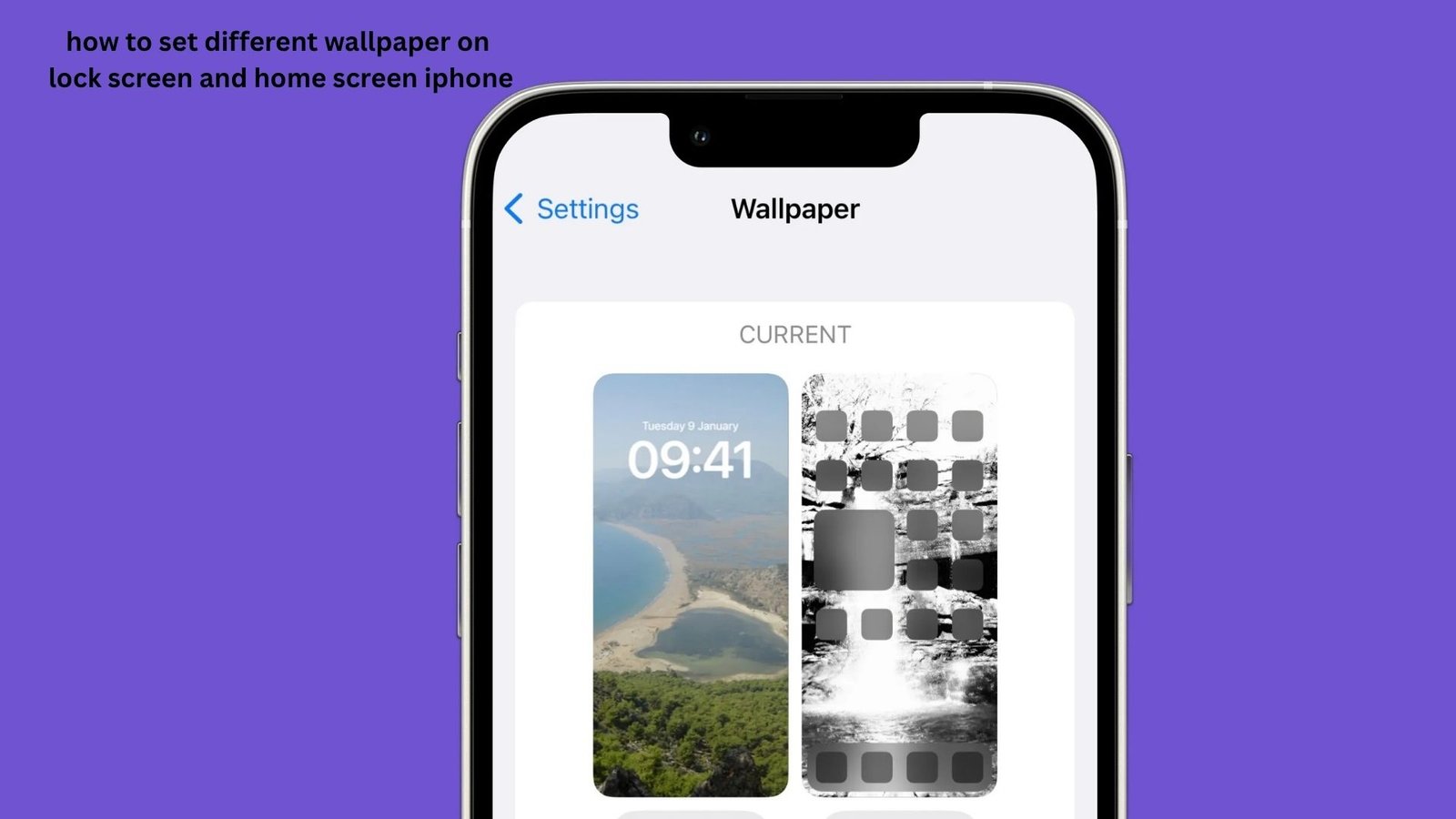
Settings → Wallpaper
You’ll see your current wallpaper setup and options for creating or modifying wallpapers.
Step 2: Add a New Wallpaper
Tap Add New Wallpaper.
Choose the type of Lock Screen background you want. Depending on your iPhone and iOS version, you may see options such as photos, suggested wallpaper collections, colors, weather-related backgrounds, or other Apple-provided choices.
If you want to use your own photograph, choose the photo option and select the picture you want.
Step 3: Customize the Lock Screen
Position the photograph the way you want it.
You can usually adjust things such as:
- The clock style
- Clock color
- Widgets
- Photo positioning
- Other available Lock Screen elements
Take a moment to check how the subject of the photo sits around the clock and widgets.
This is especially important with portrait photographs. A person’s face can look awkward if it ends up behind the clock or covered by another Lock Screen element.
Step 4: Tap Add
When you’re satisfied with the Lock Screen, tap Add.
iOS will then present options for what happens to the Home Screen.
Look for:
Customize Home Screen
Select it rather than simply accepting the automatically generated Home Screen.
Step 5: Choose Your Home Screen Wallpaper
You can now choose a different background for your Home Screen.
Depending on the available options, you may be able to use:
- A different photo
- A color
- A gradient
- A blurred version of the Lock Screen photo
- Another supported wallpaper option
Select the background you want and adjust it if necessary.
Then tap Done.
Your iPhone will now have one wallpaper on the Lock Screen and another on the Home Screen.
How to Change the Home Screen Wallpaper Without Changing the Lock Screen
You don’t always need to create a completely new wallpaper.
If you already like your Lock Screen and only want to change what’s behind your apps, start with:
Settings → Wallpaper
Find the wallpaper pair you’re currently using and choose the option to customize the Home Screen.
From there, select your preferred Home Screen background.
This is one of the most useful approaches when you’ve already spent time customizing your clock, widgets, and Lock Screen appearance.
A useful tip
If your Lock Screen is already exactly how you want it, don’t delete the wallpaper setup just to change the Home Screen. Editing the existing Home Screen customization is usually faster and reduces the chance of accidentally losing your Lock Screen configuration.
What If My iPhone Uses the Same Wallpaper on Both Screens?
This is one of the most common points of confusion.
When you create a new wallpaper, iOS may automatically generate a matching Home Screen from your Lock Screen selection. That doesn’t mean you’re permanently locked into using the same image.
The important choice is Customize Home Screen.
If you choose the option that simply applies the wallpaper combination, your iPhone may use the same or automatically related background on both screens.
Instead, return to the wallpaper customization process and specifically edit the Home Screen.
Can You Use Two Completely Different Photos?
Yes. That’s one of the main reasons to customize the Home Screen separately.
For example, imagine you have a favorite vacation photograph that looks excellent on the Lock Screen. You could use that photo there and select a completely unrelated minimalist photograph for the Home Screen.
A practical combination might look like this:
| Screen | Wallpaper idea | Why it works |
|---|---|---|
| Lock Screen | Family photo | Personal and visually attractive |
| Home Screen | Dark solid color | App icons remain easy to read |
| Lock Screen | Travel landscape | Makes the phone feel distinctive |
| Home Screen | Soft gradient | Keeps the interface uncluttered |
| Lock Screen | Pet photo | Keeps the subject prominent |
| Home Screen | Blurred version | Creates visual consistency |
The best choice isn’t necessarily the most visually impressive wallpaper. Readability matters more on the Home Screen because dozens of app icons sit on top of it.
Different Wallpaper vs. Blurred Home Screen
When customizing the Home Screen, you may notice an option to blur the background.
This creates an interesting middle ground.
Instead of using a completely different image, you can use a blurred version of the Lock Screen wallpaper.
When blur works well
Blur is useful when:
- You like visual consistency.
- Your Lock Screen photograph has strong colors.
- App icons are difficult to distinguish.
- You want the two screens to feel like part of the same design.
When a separate wallpaper is better
Choose a completely different Home Screen background when:
- Your Lock Screen is visually busy.
- You use many apps.
- You prefer a minimalist interface.
- You want the Lock Screen and Home Screen to have different moods.
Less obvious insight: A visually simple Home Screen can actually make an iPhone feel faster to use—not because the phone is technically faster, but because your eyes can locate app icons more quickly.
Best Wallpaper Combinations for Everyday Use
There’s no single ideal setup, but certain combinations work particularly well.
1. Personal Lock Screen + Minimal Home Screen
This is probably the most practical arrangement.
Use a meaningful photograph on the Lock Screen and a plain dark or neutral background on the Home Screen.
It’s particularly useful if you have lots of applications because the icons remain visually distinct.
2. Photo Lock Screen + Blurred Home Screen
This gives you consistency without allowing the photograph to compete too strongly with app labels.
It’s a good choice when you want a polished appearance without spending much time choosing two separate images.
3. Light Lock Screen + Dark Home Screen
This can create a strong visual contrast between the two screens.
For example, a bright outdoor photograph can work on the Lock Screen while a dark background provides a quieter environment behind your applications.
4. Work Lock Screen + Personal Home Screen
You can also think about wallpaper functionally.
For example:
Lock Screen: Calendar-oriented or professional appearance
Home Screen: Personal photograph or favorite design
The wallpaper doesn’t have to be purely decorative.
A Better Way to Choose Your Home Screen Wallpaper
One mistake people make is choosing a Home Screen wallpaper based solely on how attractive it looks by itself.
That’s not how you’ll actually see it.
The wallpaper will have:
- App icons
- Folder names
- Widgets
- The Dock
- Notification-related elements in some situations
So evaluate the wallpaper with your icons visible.
Try this simple test
Choose your wallpaper, return to the Home Screen, and ask:
- Can I immediately distinguish individual app icons?
- Are the labels easy to read?
- Does the wallpaper pull my attention away from the apps?
- Are bright areas sitting directly behind important icons?
- Does the screen still look good after several hours of normal use?
If the answer to several questions is no, choose a simpler background
How to Keep App Icons Easy to See
A beautiful photograph isn’t necessarily a good Home Screen wallpaper.
Images with lots of small details can make your interface look cluttered.
Instead, look for backgrounds with:
- Large areas of relatively uniform color
- Darker sections behind bright icons
- Less visual detail
- Good contrast
- No important subjects directly beneath app labels
A practical trick: If you love a busy photograph, crop it so the most detailed part isn’t positioned directly behind your primary app icons.
This often produces a better result than abandoning the photograph altogether.
Common Mistakes When Setting Separate Wallpapers
Mistake 1: Choosing the matching option automatically
The quickest option isn’t always the one you want.
If you want separate backgrounds, make sure you enter the Home Screen customization option after creating your Lock Screen.
Mistake 2: Deleting the existing wallpaper unnecessarily
If your Lock Screen is already customized with widgets and a clock style you like, deleting the entire wallpaper setup can create unnecessary work.
Try editing the Home Screen first.
Mistake 3: Using a busy image behind apps
A high-detail photograph can look fantastic on the Lock Screen but become distracting once covered with app icons.
Remember that the two screens have different jobs.
Mistake 4: Forgetting about widgets
Widgets can occupy a significant part of the Lock Screen. A photograph that looked perfectly positioned before adding widgets may look crowded afterward.
Mistake 5: Assuming every iPhone has identical wallpaper features
Wallpaper features can vary depending on the iPhone model and iOS version. If a particular effect or option isn’t visible on your device, it may simply not be supported in your current setup.
What If You Want Different Wallpapers for Different Situations?
Here’s a more advanced approach that many users overlook: you don’t have to think of your wallpaper as a single permanent design.
You can create multiple Lock Screens for different situations and associate them with different Focus configurations where supported.
For example:
Personal Focus: Family photo
Work Focus: Professional or minimalist wallpaper
Sleep Focus: Very dark, simple wallpaper
This effectively turns your wallpaper into part of your daily phone setup.
Why this is useful
Instead of manually changing your wallpaper every time your circumstances change, you can create different configurations in advance.
That’s particularly useful if you want your iPhone to feel different during work, personal time, and nighttime.
Three Less-Obvious Wallpaper Insights
1. Your Lock Screen and Home Screen have different visual jobs
The Lock Screen is something you glance at. The Home Screen is something you interact with.
That means the most attractive photograph isn’t necessarily the best Home Screen background.
Treat them as two separate pieces of interface design.
2. Contrast matters more than color
People often focus on matching colors between wallpapers. But readability is usually more important.
A slightly less attractive background with excellent icon contrast can be much more comfortable to use every day.
3. Your wallpaper should account for your app layout
The same wallpaper can look excellent on one Home Screen and terrible on another because your app icons aren’t positioned identically.
If you regularly reorganize applications, reassess the wallpaper afterward.
FAQ
Can I have a different wallpaper on my iPhone Lock Screen and Home Screen?
Yes. iPhone allows you to customize the Lock Screen and Home Screen separately. When creating or editing a wallpaper, choose Customize Home Screen and select a different background. You can use a different photo, color, or another available Home Screen option.
How do I set different pictures for my Lock Screen and Home Screen on iPhone?
Go to Settings → Wallpaper → Add New Wallpaper and choose your Lock Screen design. After tapping Add, select Customize Home Screen instead of applying the same wallpaper automatically. Choose your preferred Home Screen picture and tap Done.
Can I change only the Home Screen wallpaper?
Yes, in supported iOS versions you can customize the Home Screen independently from the Lock Screen. This is useful when you already have your Lock Screen clock, widgets, and photograph configured exactly as you like. Look under Settings → Wallpaper and edit the relevant Home Screen customization.
Why does my iPhone keep using the same wallpaper on both screens?
This usually happens because the automatically generated or matching Home Screen option was selected during wallpaper setup. Return to your wallpaper settings and choose the option to customize the Home Screen separately. From there, select another photo, color, or available background.
Is a blurred Home Screen better than a completely different wallpaper?
It depends on what you want. A blurred version keeps the visual connection between your Lock Screen and Home Screen while reducing distractions behind app icons. A completely different wallpaper is better if you want a stronger visual separation or a more minimalist Home Screen.
Can I have different wallpapers for different Focus modes?
Yes, iPhone supports multiple Lock Screen configurations and can associate Lock Screens with Focus modes. This lets you create different visual setups for situations such as work, personal time, or sleep. The exact options available can vary with your iOS version and device.
Final Takeaway
Setting different wallpaper on your iPhone is mainly about knowing where the separate Home Screen customization lives. Start by creating or editing your Lock Screen, then select Customize Home Screen and choose the background you actually want behind your apps.
For the best everyday experience, don’t judge a wallpaper by the picture alone. Check how well your icons and labels remain readable, consider where your widgets sit, and remember that the Lock Screen and Home Screen serve different purposes.
If you want a simple setup that works reliably, try a personal or detailed Lock Screen paired with a darker, quieter Home Screen. It gives you personality when you wake the phone while keeping everyday app navigation clean.