Have you ever searched through dozens of apps on your phone just to find the one you use every day? Many people download useful apps but leave them buried inside folders or hidden among hundreds of icons. This small inconvenience can become frustrating, especially when you need quick access to banking apps, work tools, shopping platforms, or frequently visited websites.
Learning how to add app to home screen can save time and make your smartphone experience much smoother. Whether you use an Android phone, an iPhone, or want to add a website shortcut like an app, the process is usually simple and takes only a few seconds.
In this guide, you will learn different ways to add apps to your home screen, fix common issues when an app icon does not appear, organize your shortcuts better, and understand useful settings that many users overlook. These practical methods work for everyday situations and can help you keep your phone faster, cleaner, and easier to use.
What Does Adding an App to the Home Screen Mean?
Adding an app to the home screen means creating a shortcut that appears directly on your phone’s main display. Instead of opening your app drawer or searching manually every time, you can tap the icon and launch the app instantly.
Most smartphones have two main areas where apps are stored:
- App library or app drawer: Contains all installed applications.
- Home screen: Shows selected apps and shortcuts for quick access.
For example, you may have 80 apps installed but only need quick access to 10 important ones, such as:
- Messaging apps
- Email applications
- Maps
- Banking apps
- Work tools
- Social media platforms
Adding only your most-used apps keeps your phone organized and improves daily productivity.
How to Add App to Home Screen on Android
Android phones from brands like Samsung, Google Pixel, OnePlus, Xiaomi, and Motorola may look slightly different, but the basic process is almost identical.
Method 1: Add an App From the App Drawer
Follow these steps:
- Unlock your Android phone.
- Swipe up from the bottom of the screen to open the app drawer.
- Find the app you want to add.
- Press and hold the app icon.
- Select “Add to Home” or drag the icon to the home screen.
- Place it wherever you want.
The app shortcut will now appear on your home screen.
Method 2: Drag an App Directly
Some Android versions allow you to move apps directly:
- Open the app drawer.
- Tap and hold the app icon.
- Keep holding while moving your finger upward.
- Drop the icon on the desired home screen page.
This method is useful when organizing several apps at once.
How to Add App to Home Screen on iPhone
Apple uses a slightly different system because apps are managed through the App Library.
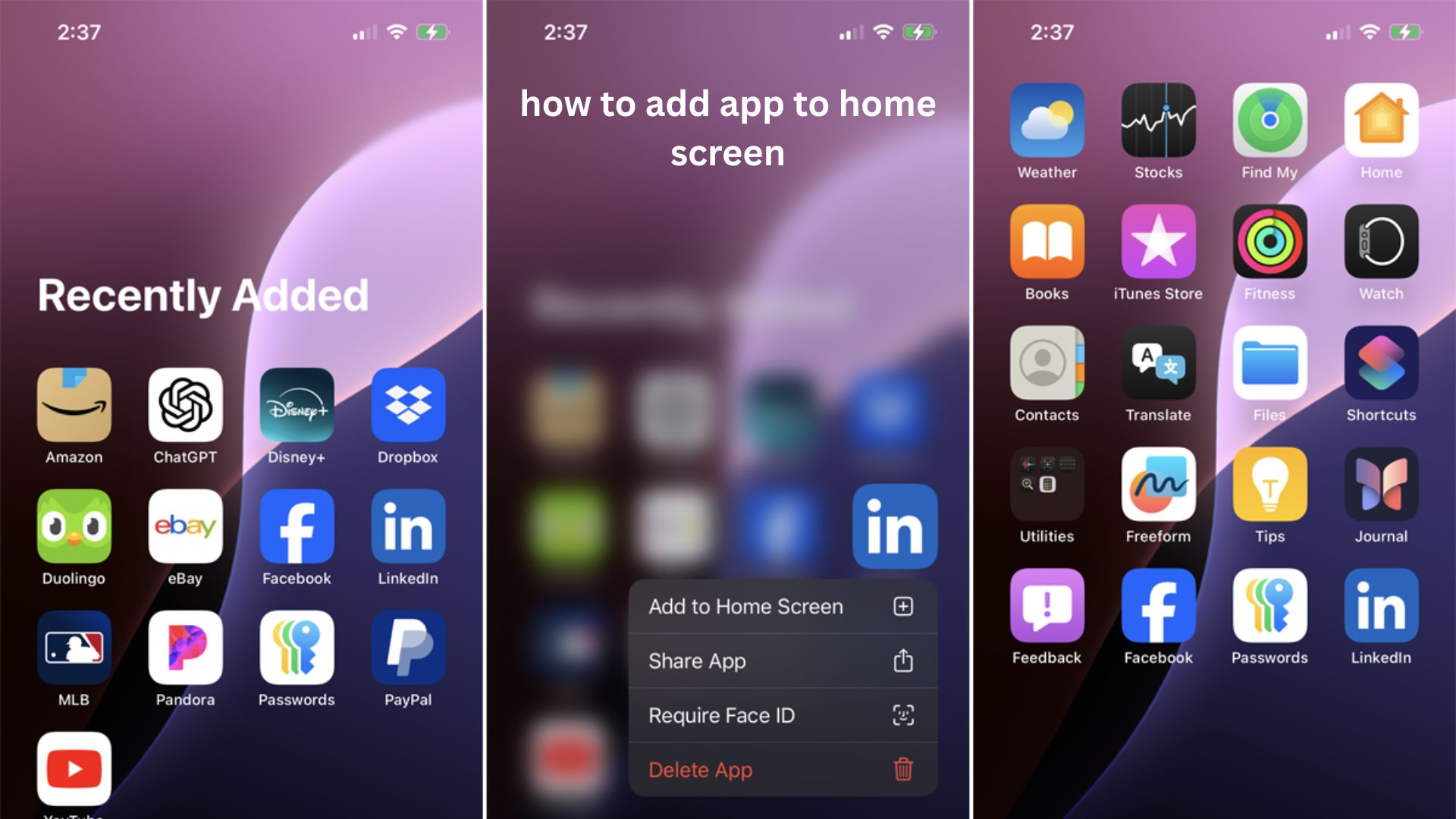
Move an App From App Library to Home Screen
To add an app shortcut:
- Swipe left past all your home screen pages.
- Open the App Library.
- Find the app.
- Press and hold the app icon.
- Tap “Add to Home Screen.”
The app will appear on your home screen immediately.
Change iPhone Settings So New Apps Appear Automatically
Sometimes newly downloaded apps do not appear on the home screen because of settings.
To change this:
- Open Settings.
- Select Home Screen & App Library.
- Choose “Add to Home Screen.”
After changing this option, new downloads will automatically appear on your home screen.
How to Add a Website to Your Home Screen Like an App
Many people do not realize that websites can also be added as shortcuts. This is useful for websites you visit frequently but do not want to install as apps.
Examples include:
- Online banking websites
- News websites
- Work dashboards
- Shopping sites
Add Website Shortcut on Android
Using Chrome:
- Open Chrome.
- Visit the website.
- Tap the three-dot menu.
- Select “Add to Home screen.”
- Choose a name.
- Tap Add.
The website shortcut will appear like an app icon.
Add Website Shortcut on iPhone
Using Safari:
- Open Safari.
- Visit the website.
- Tap the Share button.
- Scroll down.
- Select “Add to Home Screen.”
- Confirm the name.
- Tap Add.
This creates a shortcut directly on your iPhone display.
Why Some Apps Do Not Appear on the Home Screen
A common problem is downloading an app but not seeing the icon afterward. This does not always mean something went wrong.
Here are the most common reasons.
The App Is Hidden in the App Library
Modern smartphones often store newly installed apps outside the main screen.
Solution:
- Search for the app.
- Move it manually to the home screen.
The App Is Inside a Folder
Sometimes apps disappear because they are placed inside folders.
Check folders with names like:
- Utilities
- Tools
- Games
- Other apps
The App Installation Is Incomplete
A slow internet connection or interrupted download can prevent proper installation.
Try:
- Check your internet connection.
- Open the app store.
- Confirm installation is complete.
- Restart the phone if needed.
Home Screen Space Is Full
Some phones cannot place new icons when every available space is occupied.
Solution:
- Remove unused shortcuts.
- Create another home screen page.
- Move apps into folders.
How to Organize Apps After Adding Them
Adding apps is only the first step. Good organization makes your phone easier to use.
Create Folders for Similar Apps
Instead of filling multiple screens, group similar apps.
Examples:
Work Folder
- Calendar
- Documents
- Communication tools
Finance Folder
- Banking apps
- Payment apps
- Budget tools
Entertainment Folder
- Streaming apps
- Music apps
- Games
Keep Frequently Used Apps Within Reach
A useful approach is the “thumb zone” method.
Place your most-used apps:
- Near the bottom of the screen
- Close to your dominant hand
- In the dock area if possible
This reduces unnecessary scrolling.
Remove Apps You Rarely Use
A crowded home screen creates unnecessary searching.
Consider removing shortcuts for:
- Apps used once a month
- Pre-installed apps
- Duplicate tools
Remember, removing an icon does not always uninstall the app.
Advanced Tips for Better Home Screen Management
Use Widgets Alongside Apps
Widgets provide information without opening an application.
Examples:
- Weather updates
- Calendar appointments
- Battery status
- Notes
- News updates
A well-designed home screen combines important apps with useful widgets.
Use Search Instead of Scrolling
Many users spend too much time searching manually.
Android and iPhone both include powerful search features:
- Android: Swipe up and search apps.
- iPhone: Swipe down from the middle of the home screen.
This is often faster than browsing pages.
Customize Icons Carefully
Some Android launchers allow custom icon packs and layouts.
However, avoid overly complicated designs. A beautiful home screen that slows you down is less useful than a simple one that helps you find things quickly.
Common Mistakes When Adding Apps to Home Screen
Adding Too Many Apps
A home screen filled with dozens of icons defeats the purpose of quick access.
A better approach:
- Keep essential apps visible.
- Store less-used apps in the app drawer.
Confusing Removing With Uninstalling
Many users accidentally delete apps when they only wanted to remove shortcuts.
Before confirming, check whether the option says:
- Remove from Home Screen
- Uninstall/Delete App
They are different actions.
Ignoring Automatic App Organization
Some phones automatically organize apps based on usage. Disabling helpful features can make your device harder to manage.
Real-Life Examples Where Home Screen Shortcuts Help
Example 1: Busy Professionals
A person who frequently checks emails, calendars, and work documents can save several steps every day by placing these apps on the first screen.
Example 2: Older Smartphone Users
For people who prefer simplicity, placing important apps like calls, messages, and health tools on the home screen makes navigation easier.
Example 3: Parents and Families
Parents can create a simple home screen layout with communication, school, and emergency-related apps for faster access.
Unique Tips Many Users Do Not Know
Your Home Screen Is a Productivity Tool
Most people treat the home screen as decoration, but it can function like a personal dashboard. The apps you see first influence what you use most often.
Fewer Icons Can Make Your Phone Feel Faster
A cleaner layout does not increase phone speed technically, but it reduces decision time. Many users experience a smoother workflow simply because they spend less time searching.
Website Shortcuts Can Replace Some Apps
Not every service needs a downloaded application. For occasional services, a home screen website shortcut can save storage space while keeping access convenient.
Frequently Asked Questions
How do I add an app to my home screen on Android?
To add an app on Android, open the app drawer, press and hold the app icon, and drag it to the home screen. Some phones also show an “Add to Home” option after holding the icon.
Why is my downloaded app not showing on the home screen?
Your app may be stored in the app drawer or App Library instead of the home screen. You can search for the app and manually move it back to your main display.
How do I add an app to my iPhone home screen from App Library?
Open the App Library, find the app, press and hold the icon, and choose “Add to Home Screen.” The app will then appear on your selected home screen page.
Can I add a website to my home screen like an app?
Yes. Android users can use Chrome’s “Add to Home screen” option, while iPhone users can use Safari’s “Add to Home Screen” feature to create website shortcuts.
Does removing an app from the home screen delete it?
No. Removing an icon usually only removes the shortcut. The app remains installed unless you choose the uninstall or delete option.
Conclusion
Knowing how to add app to home screen makes everyday smartphone use faster and more convenient. Whether you use Android or iPhone, the process takes only a few moments and can significantly improve how you access important tools.
A well-organized home screen is not about having every app visible. It is about creating a simple space where the apps you need most are always easy to reach. By combining smart placement, folders, widgets, and useful shortcuts, you can turn your phone’s first screen into a more efficient personal workspace.