
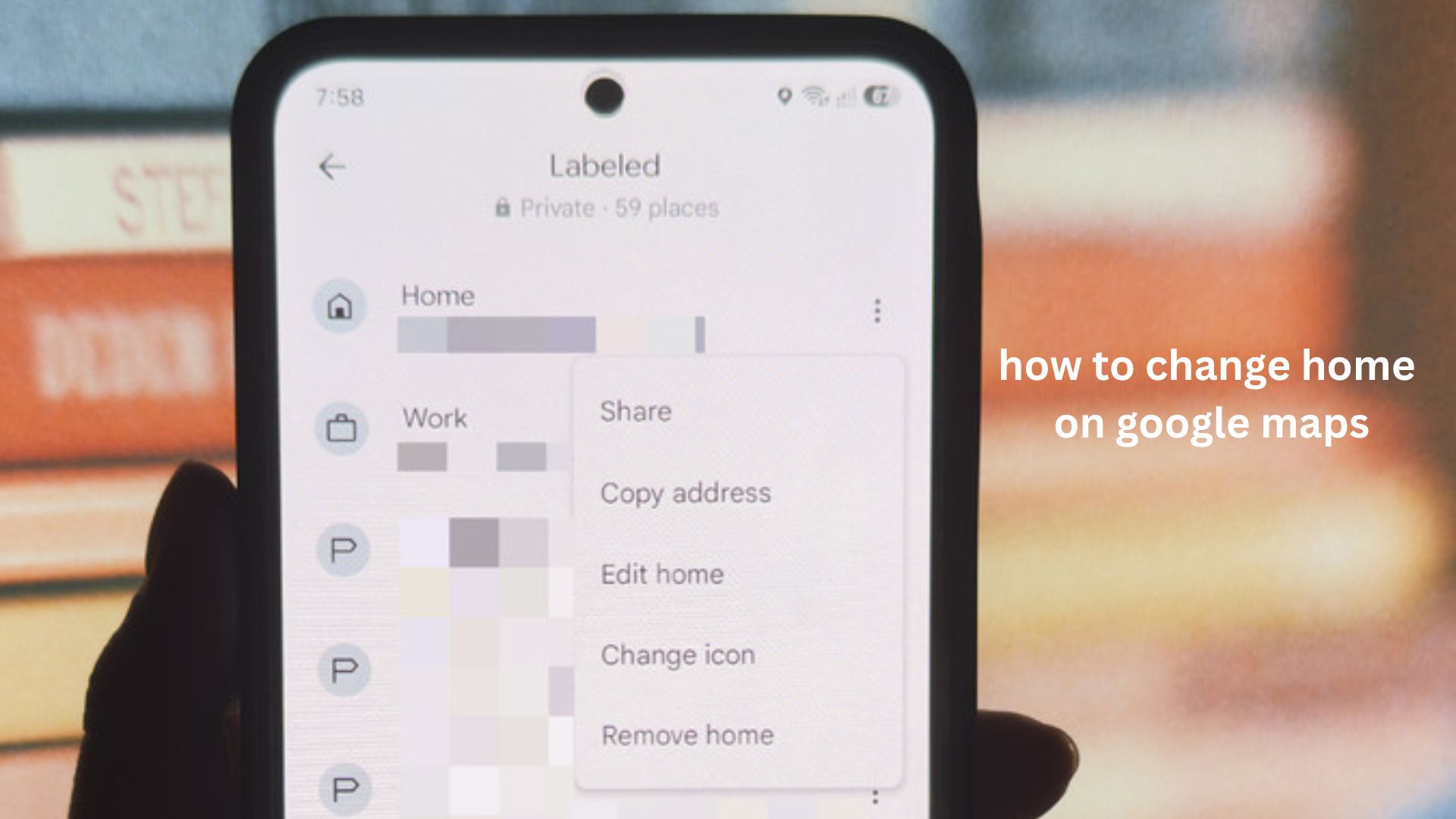
Have you recently moved to a new house, changed apartments, or noticed that Google Maps keeps sending you to your old address whenever you ask for directions home? This small issue can become frustrating, especially when you rely on voice navigation during daily travel. Fortunately, learning how to change home on Google Maps is a quick process that only takes a few minutes.
Google Maps uses your saved “Home” location to provide faster directions, personalized suggestions, and easier navigation. When this address is outdated, it can affect your commute, travel estimates, and even voice commands through Google Assistant.
In this guide, you will learn exactly how to update your Home address on Google Maps using Android, iPhone, and desktop. You will also discover practical tips for fixing common problems, managing saved locations, and keeping your navigation experience accurate after moving. Whether you are changing your home because of relocation, privacy concerns, or a simple mistake, these steps will help you update everything correctly.
What Does “Home” Mean on Google Maps?
In Google Maps, Home is a saved personal location linked to your Google Account. It is not your official address registered with Google or a public location listing. Instead, it is a private shortcut that helps Google provide personalized navigation features.
When you save a Home address, Google Maps can:
- Quickly calculate directions from your home location
- Suggest travel times for your daily routes
- Help Google Assistant understand commands like “navigate home”
- Make searching for frequent destinations easier
Your Home address is visible only to you unless you choose to share it through other Google services.
A common misunderstanding is that changing your Home location changes your address everywhere online. It does not. It only updates the saved location inside your Google account.
How to Change Home on Google Maps (Android)
If you use an Android phone, you can change your Home address directly from the Google Maps app.
Follow these steps:
- Open the Google Maps app on your Android device.
- Tap your profile picture in the top-right corner.
- Select Settings.
- Tap Edit home or work.
- Choose Home.
- Remove the old address or enter your new address.
- Select the correct location from the suggestions.
- Save the changes.
After updating, Google Maps will immediately use your new Home location for future directions.
Practical Tip for Android Users
When entering your new address, avoid typing only a building name or neighborhood. Google Maps may choose a nearby location instead of your exact home.
For better accuracy:
- Enter the complete street address
- Confirm the map pin location
- Adjust the pin manually if needed
This is especially important in areas where several buildings share similar names or where addresses are not consistently mapped.
How to Change Home on Google Maps on iPhone
The process is similar for iPhone users, although the menu layout may look slightly different.
To update your Home address:
- Open the Google Maps app on your iPhone.
- Tap your profile icon.
- Select Settings.
- Choose Edit home or work.
- Tap Home.
- Enter your new address.
- Select the correct location.
- Confirm the update.
Your saved Home location will now be changed across Google Maps whenever you use the same Google Account.
Why iPhone Users Sometimes Cannot Find This Option
Some users look through iPhone settings instead of Google Maps settings. The Home address is controlled inside the Google Maps app, not through iOS location settings.
If the option does not appear:
- Make sure you are signed into the correct Google account
- Update the Google Maps app
- Check whether you are using a personal account or a managed work account
How to Change Home Address on Google Maps Desktop
You can also update your Home location from a computer.
Here is how:
- Open Google Maps in your web browser.
- Sign in to your Google Account.
- Click the menu icon.
- Select Your places.
- Open the Labeled tab.
- Find Home.
- Click the edit option.
- Enter your new address.
- Save the changes.
The update will sync with your mobile devices as long as you are signed into the same Google account.
How to Remove an Old Home Address from Google Maps
Sometimes users do not want to replace their Home address. They simply want to delete it.
To remove Home:
- Open Google Maps.
- Go to your profile settings.
- Open saved Home and Work locations.
- Select Home.
- Remove or delete the saved address.
Removing your Home location does not delete your Google Account or affect your location history.
When Removing Home Makes Sense
You may want to remove your Home address if:
- You are moving temporarily
- You share a device with someone else
- You want fewer saved personal details
- Google Maps keeps suggesting the wrong place
How to Fix Google Maps Showing the Wrong Home Location
A common problem is that users update their address but Google Maps still shows the old location.
This usually happens because of one of these reasons:
1. You Updated the Wrong Google Account
Many people have multiple accounts signed into their phone. Your Home address may still be saved under another account.
Check:
- The profile picture in Google Maps
- The email address connected to the account
- Whether the same account is used across devices
2. Google Maps Saved the Wrong Pin
Sometimes Google selects a nearby location instead of your exact house.
To fix this:
- Edit your Home address again
- Check the map marker
- Move the pin to your exact entrance if available
This is particularly useful in apartment complexes, rural areas, and newly developed neighborhoods.
3. App Data Needs Refreshing
If your updated Home address does not appear:
Try:
- Closing and reopening Google Maps
- Updating the app
- Signing out and signing back in
- Restarting your phone
Usually, synchronization happens quickly, but app data can occasionally delay the update.
How Changing Home Improves Your Google Maps Experience
Updating your Home location is not just about fixing directions. It improves how Google Maps understands your daily travel patterns.
For example:
Imagine someone moves from an apartment downtown to a house in the suburbs. If they forget to update Home, Google Maps may continue estimating commute times based on the old location. Their morning travel suggestions may become inaccurate.
After updating Home:
- Traffic predictions become more relevant
- Navigation shortcuts become faster
- Voice commands work correctly
- Frequent travel recommendations improve
A small update can significantly improve daily navigation.
Advanced Tips for Managing Your Google Maps Home Location
Use a Precise Address Instead of a General Area
A neighborhood name may not be enough. Google Maps works best when your saved location matches your actual entrance point.
For example:
Less accurate:
- “Green Valley Apartments”
More accurate:
- Full street address with apartment number
Check Your Saved Locations After Moving
Many people update their Home address but forget other saved places.
Review:
- Work address
- Favorite restaurants
- Frequent destinations
- Saved lists
Keeping these updated improves your overall Google Maps experience.
Consider Privacy Before Saving Your Home
Although your Home location is private, anyone who accesses your unlocked device or Google account may see saved locations.
Good security practices include:
- Using a strong Google password
- Enabling two-step verification
- Locking your phone
Your saved Home address is useful, but it should still be protected like any personal information.
Common Mistakes When Changing Home on Google Maps
Mistake 1: Changing Your Phone Address Instead of Google Maps
Your phone’s contact address and Google Maps Home address are separate. Updating one does not automatically update the other.
Mistake 2: Forgetting to Switch Google Accounts
If you use multiple Google accounts, always confirm which account contains your Home setting.
Mistake 3: Selecting the Wrong Map Result
Google Maps may show several similar addresses. Always verify the selected location before saving.
Mistake 4: Assuming Changes Update Immediately Everywhere
Your Google Maps Home location changes quickly, but other Google services may have separate saved information.
Real-Life Examples Where Updating Home Helps
Moving to a New House
A family moves across town but forgets to update Home. Their daily commute suggestions remain based on the previous address. Updating Home fixes navigation recommendations immediately.
Renting a Temporary Apartment
A person staying in another city for several months can update Home temporarily and remove it later when returning.
Managing Multiple Locations
Someone with separate personal and business accounts can maintain different saved locations without confusing Google Maps.
FAQ
How do I change my Home address on Google Maps?
You can change your Home address by opening Google Maps, going to your profile settings, selecting “Edit home or work,” and updating the saved Home location. Make sure you are signed into the correct Google account before making changes.
Why does Google Maps still show my old Home address?
Google Maps may still show your old Home because you updated a different account, the app has not refreshed, or the old address is saved elsewhere. Check your account, restart the app, and confirm the new location is properly saved.
Can I change my Home location on Google Maps from a computer?
Yes, you can update your Home location from Google Maps on a desktop browser. Open your saved places, edit the Home label, enter the new address, and save the changes.
Is my Home address on Google Maps public?
No, your saved Home location is private to your Google Account. It does not appear publicly on Google Maps unless you separately share information or create a public listing.
Can I set a temporary Home address on Google Maps?
Yes, you can change your Home location whenever needed. Many people update it temporarily when staying somewhere for an extended period and switch it back later.
Conclusion
Knowing how to change home on Google Maps helps you keep your navigation accurate and personalized. Whether you moved to a new property, corrected an incorrect address, or simply want better travel suggestions, updating your Home location is a simple but valuable adjustment.
The most important steps are choosing the correct Google account, entering an accurate address, and verifying the map location before saving. Small details like these prevent frustrating navigation errors later.
Keeping your saved locations updated ensures Google Maps works with your current lifestyle instead of your old routines. A few minutes spent managing your settings can make everyday travel much smoother.